
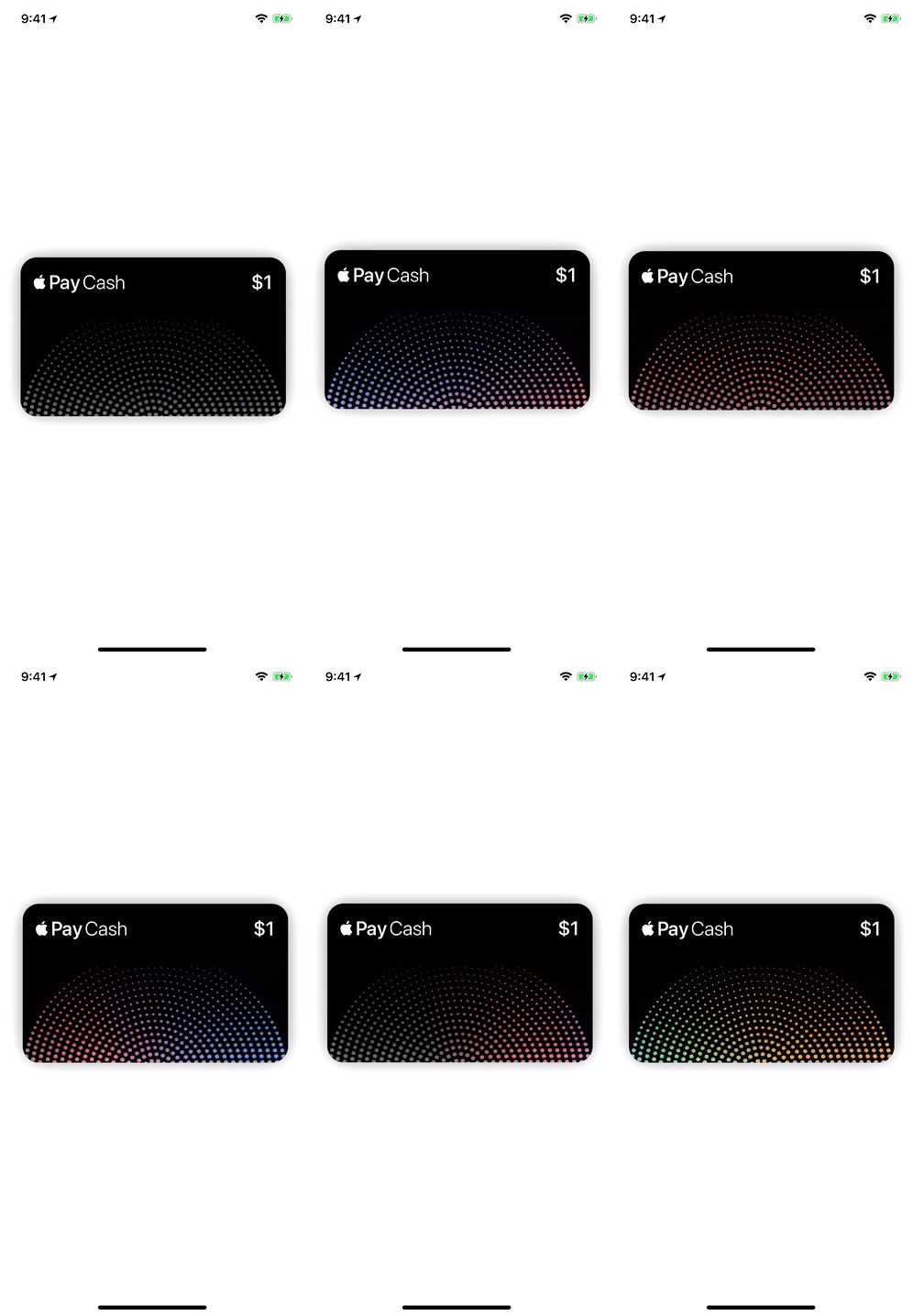
Iridescent Effect
How to Add an Iridescent Effect to your Flutter App?
Adding an iridescent effect to your Flutter app can make it look more polished and professional. This effect can be achieved using the device's gyroscope, which can detect motion and orientation changes in real-time. In this article, we will describe how to use the sensors package in Flutter to read gyroscope data and create an iridescent effect using a shader.
Prerequisites
To follow along with this tutorial, you will need to have Flutter installed on your system. You can download Flutter from the official website: https://flutter.dev/docs/get-started/install .
Step 1: Add the sensors package to your project
To use the gyroscope in your Flutter app, you will need to add the sensors package to your project. To do this, add the following line to your project's pubspec.yaml file:
dependencies:
  sensors: ^0.6.2
After adding the package, run flutter pub get to download and install it.
Step 2: Create a CustomPaint widget
To create the iridescent effect, we will use a CustomPaint widget, which allows us to write custom painting code using the device's graphics hardware. Here's an example of how to create a CustomPaint widget:
class IridescentEffect extends StatefulWidget {
  @override
  _IridescentEffectState createState() => _IridescentEffectState();
}

class _IridescentEffectState extends State<IridescentEffect> {
  @override
  Widget build(BuildContext context) {
    return CustomPaint(
      painter: IridescentPainter(),
      child: Container(),
    );
  }
}
In this example, we have created a CustomPaint widget that uses an IridescentPainter to draw the iridescent effect. We have also provided an empty Container as the child of the CustomPaint widget.
Step 3: Implement the GyroscopeEvent listener
To read the gyroscope data, we will use the gyroscopeEvents stream provided by the sensors package. Here's an example of how to implement a GyroscopeEvent listener:
class _IridescentEffectState extends State<IridescentEffect> {
  StreamSubscription<GyroscopeEvent> _subscription;

  @override
  void initState() {
    super.initState();
    _subscription = gyroscopeEvents.listen((GyroscopeEvent event) {
      // Do something with the gyroscope data
    });
  }

  @override
  void dispose() {
    super.dispose();
    _subscription.cancel();
  }

  @override
  Widget build(BuildContext context) {
    return CustomPaint(
      painter: IridescentPainter(),
      child: Container(),
    );
  }
}
In this example, we have created a _subscription object to hold the gyroscope event listener. We have also implemented the initState and dispose methods to start and stop the listener, respectively. Finally, we have added the CustomPaint widget to the build method.
Step 4: Create the IridescentPainter class
To draw the iridescent effect, we will create a custom IridescentPainter class that uses a shader to create the effect. Here's an example of how to create the IridescentPainter class:
class IridescentPainter extends CustomPainter {
  final double _scale = 2