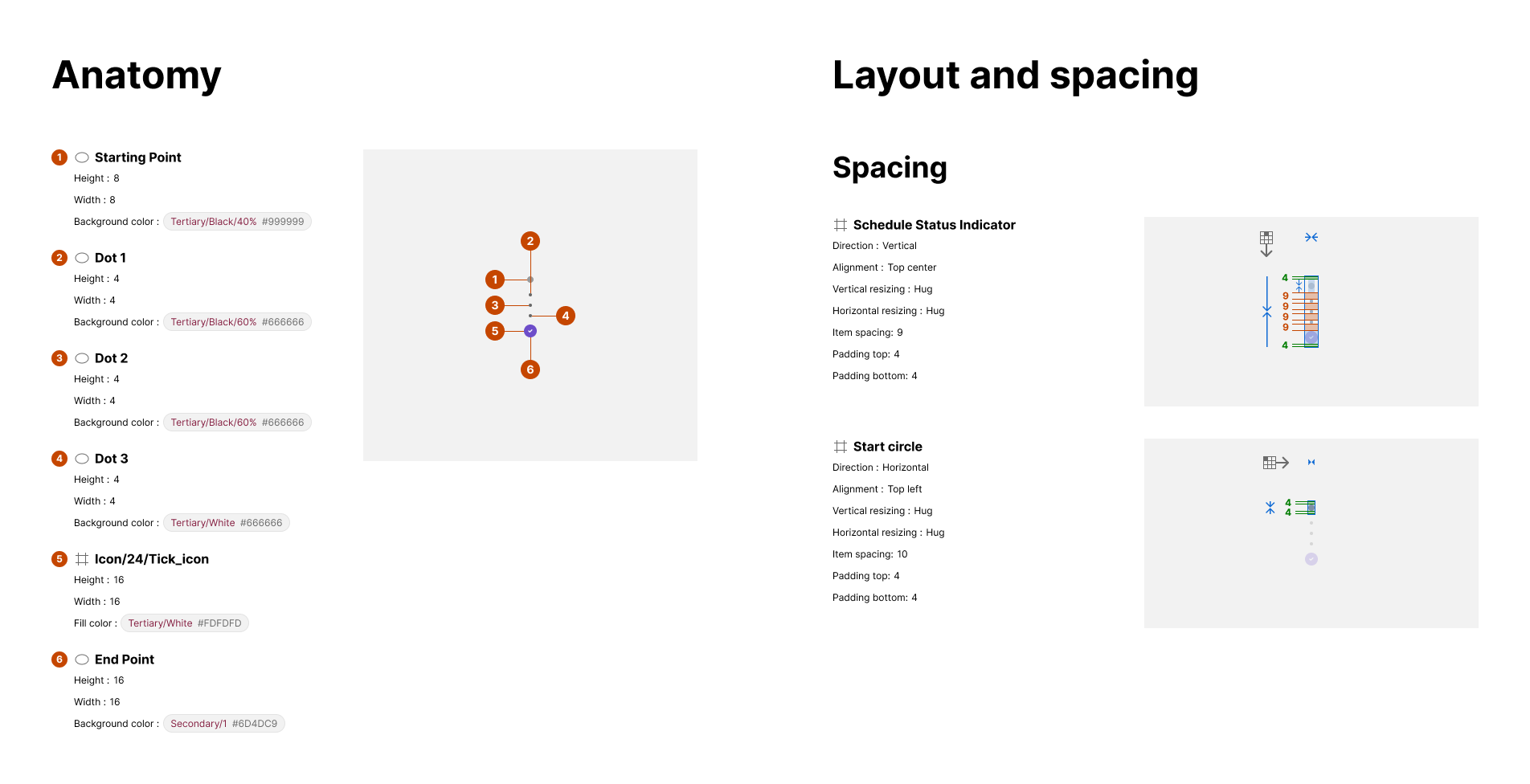
Scheduled payments are a convenient and automated way to handle recurring financial transactions. They allow individuals and businesses to set up predetermined payment instructions that are executed at specific intervals or on specified dates.
Our schedule + payment module allows uses to create schedule payment AND scheduled requests.
Payment use cases are:
-
Personal Finance Management: Automate savings, investments, and debt repayments.
-
Peer-to-Peer Payments: Schedule recurring payments to individuals or vendors.
-
Salary Payments: Automate employee salary disbursements.
-
Bill Payments: Schedule recurring payments for utilities, telecom, and other bills.
-
Subscription Management: Automate payments for streaming, music, and software subscriptions.
-
Loan Repayments: Set up scheduled payments for loans and credit card bills.
-
Batch payments: Distribute different amount to group of people
Request use cases are:
-
Peer-to-Peer requests: Request peer to sent regular scheduled payment to me
-
Batch request: Request group of people to send me regular scheduled payment
ACCESS TO STYLEGUIDE: https://www.figma.com/file/F1fNT99VGTJHJ1jAnjFTn6/Youtap-Style-guide-V1.0.2023?node-id=1%3A22&t=SjE1WJmyUFk9CClb-1
CREATION
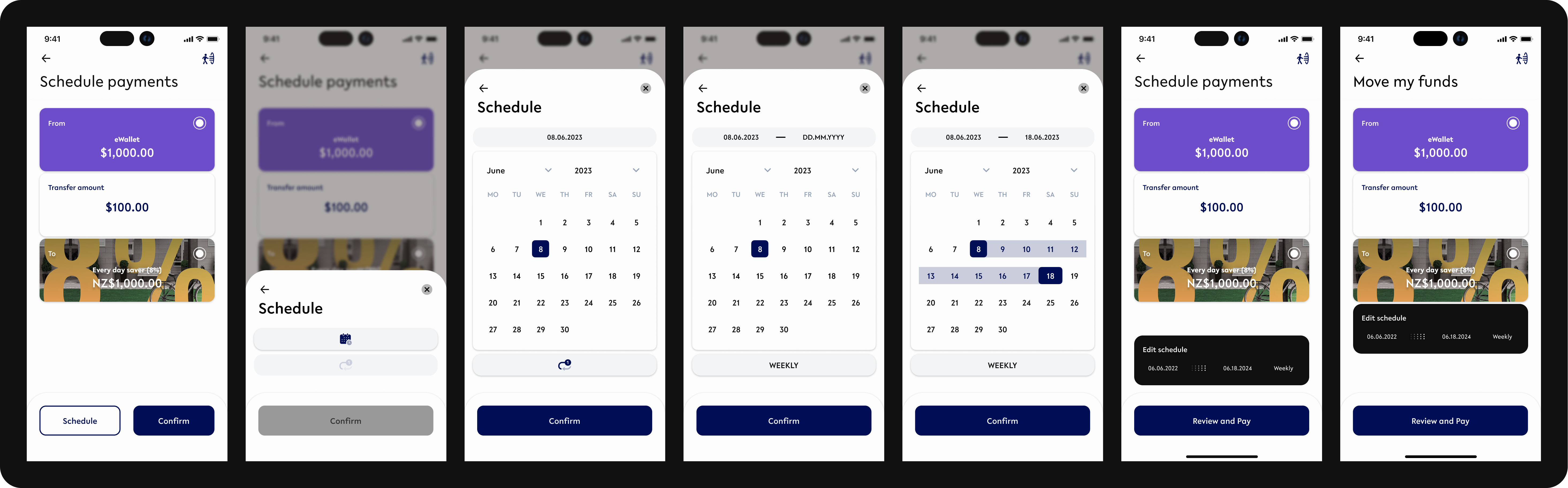
DETAILS:
Schedule payment are created from the payment module via CTA ‘Schedule’
Depending on the configuration of information (starting date, end date, and frequency) there are 3 different types of schedules which could be created.
-
One off payment
-
Fixed period repeat payment
-
On going repeat payment.
The steps to create them are described below.
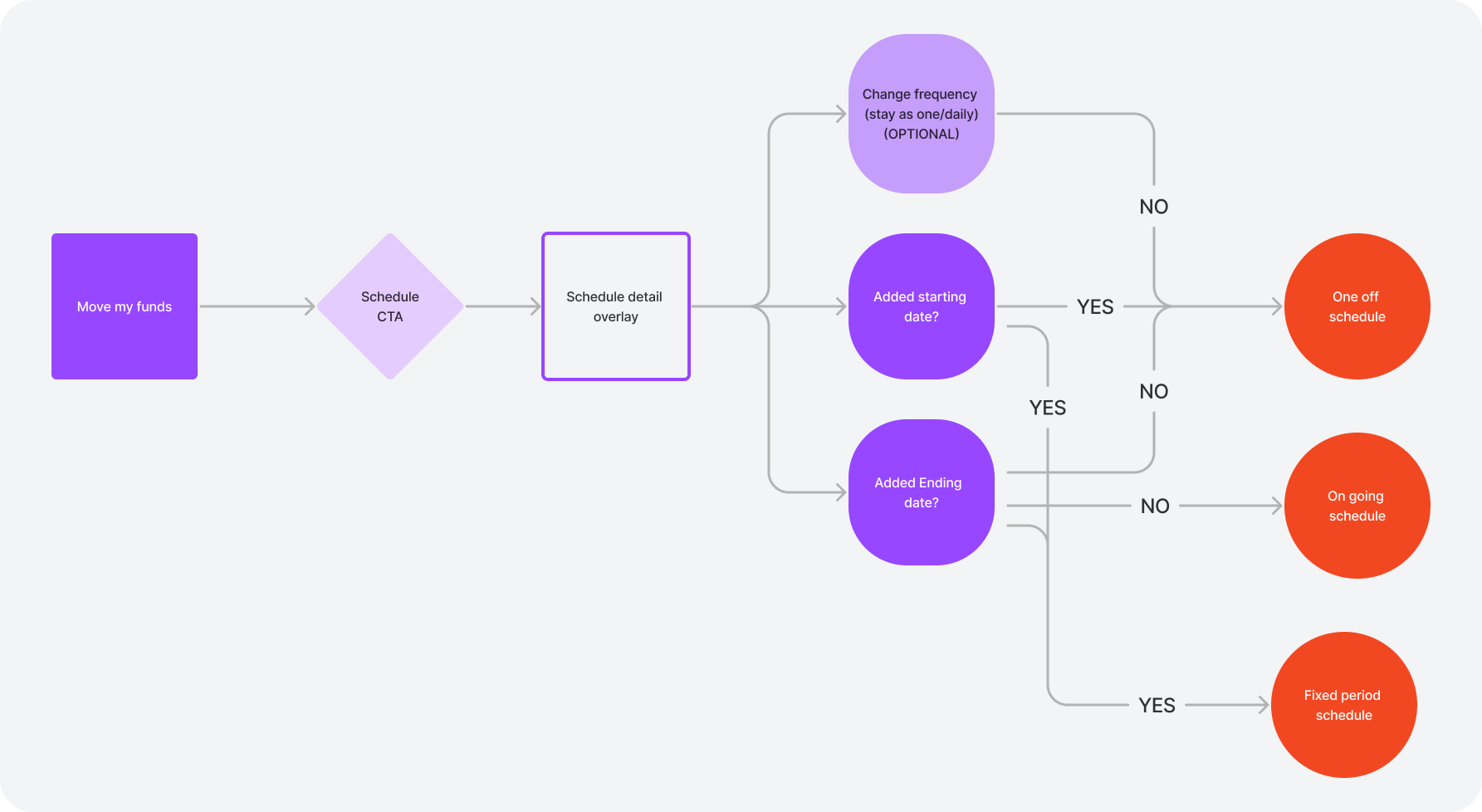
One off schedule payment
Create one off payment to be made automatically on a specific date.
-
Schedule CTA
-
Set starting date(one off date)
[Don't set end date] -
Select Frequency to '1 cycle' (default)
-
Confirm CTA
-
Review and Pay CTA to finalising add schedule to the payment
Fixed schedule repeat payment
Within set period of dates, assigned amount will be transacted at the frequency assigned
-
Schedule CTA
-
Set starting date
-
Set end date
-
Select Frequency ('1 cycle' becomes inactive)
-
Confirm CTA
-
Review and Pay CTA to finalising add schedule to the payment
On-going schedule repeat payment
Assigned amount will be transacted at the set frequency for indefinite period until cancelled or end date is edited.
-
Schedule CTA
-
Set starting date
[Don't set end date] -
Select Frequency (any except ‘1 cycle’)
-
Confirm CTA
-
Review and Pay CTA to finalising add schedule to the payment
REVIEW SCHEDULES
PATH: Homepage → Transaction Menu → Schedule
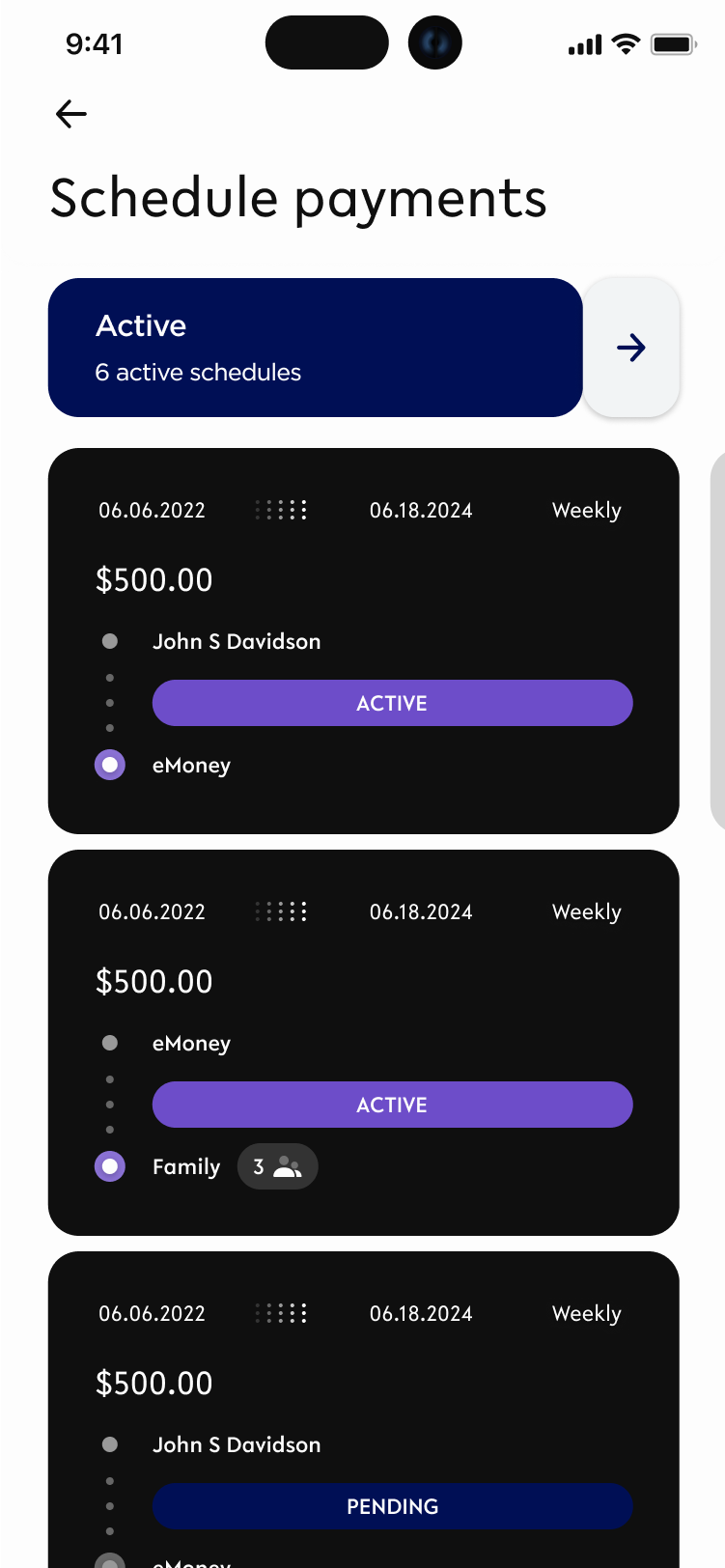
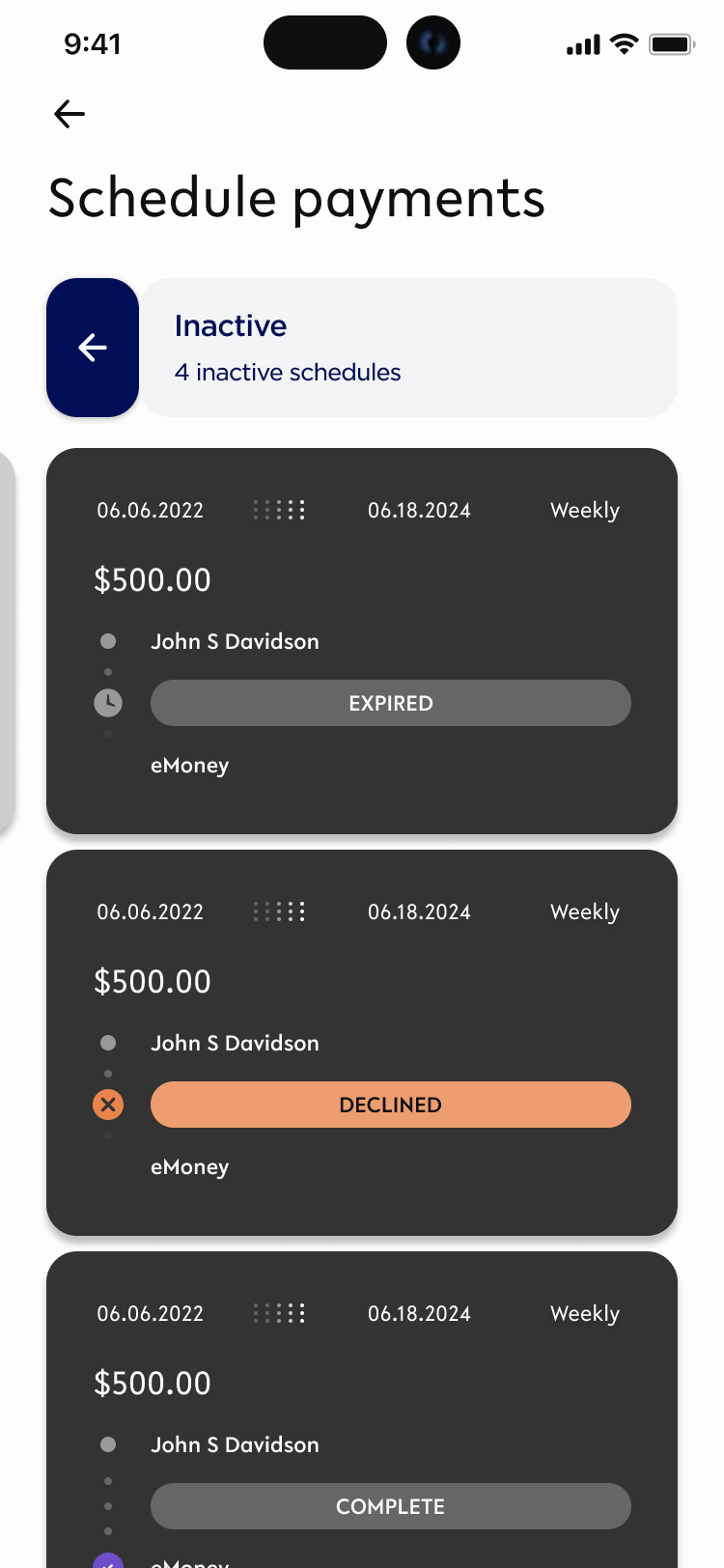
Users are able to navigate between Active tile lists and Inactive Tile lists
|
Active Tiles |
Inactive Tiles |
|---|---|
|
|
|
Active |
Declined |
|
Request Pending |
Cancelled |
|
|
Expired |
|
|
Complete |
Tile Expanded view:

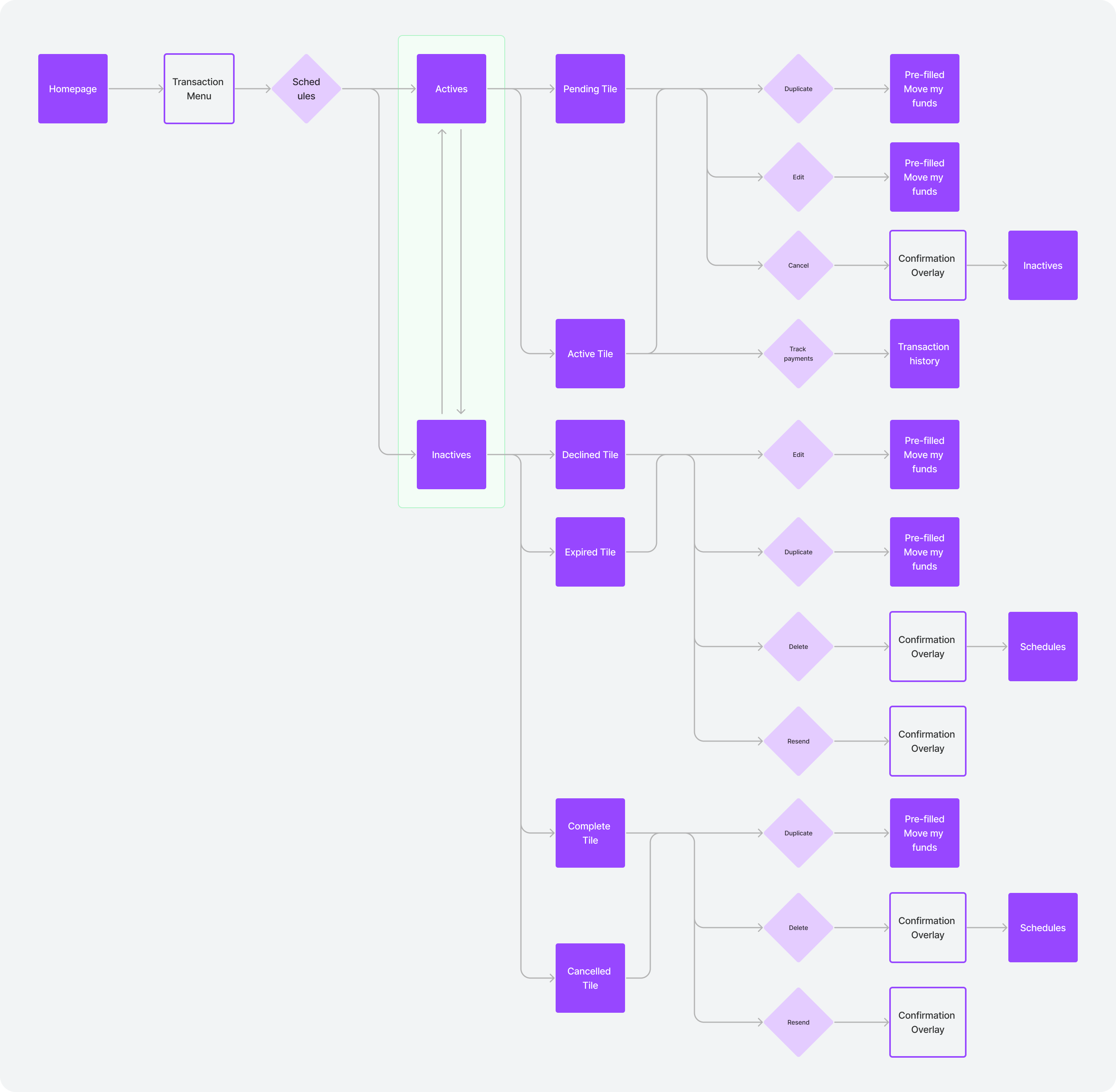
Schedule navigation flow-map
Expand to view the mapping
CTA application and prototypes
|
CTAs |
Application |
Actions |
Visual example links |
|---|---|---|---|

|
Repeat Request
|
|
|

|
Duplicate
|
|
|

|
Edit
|
|
|

|
Cancel
|
|
|

|
Delete
|
|
Schedule Tracking UI
Tracking payments is expandable UI that is applied to active or was active schedules that has transaction history. ( i.e. Activity state, Cancelled state, and complete state)
|
|
Animation demo |
|---|---|
|
State 1: Collapse state which has the title and the icon State 2: Expands and present all schedules of future and past transactions. They are distinguished by 2 states.
|
|
EDIT SCHEDULE
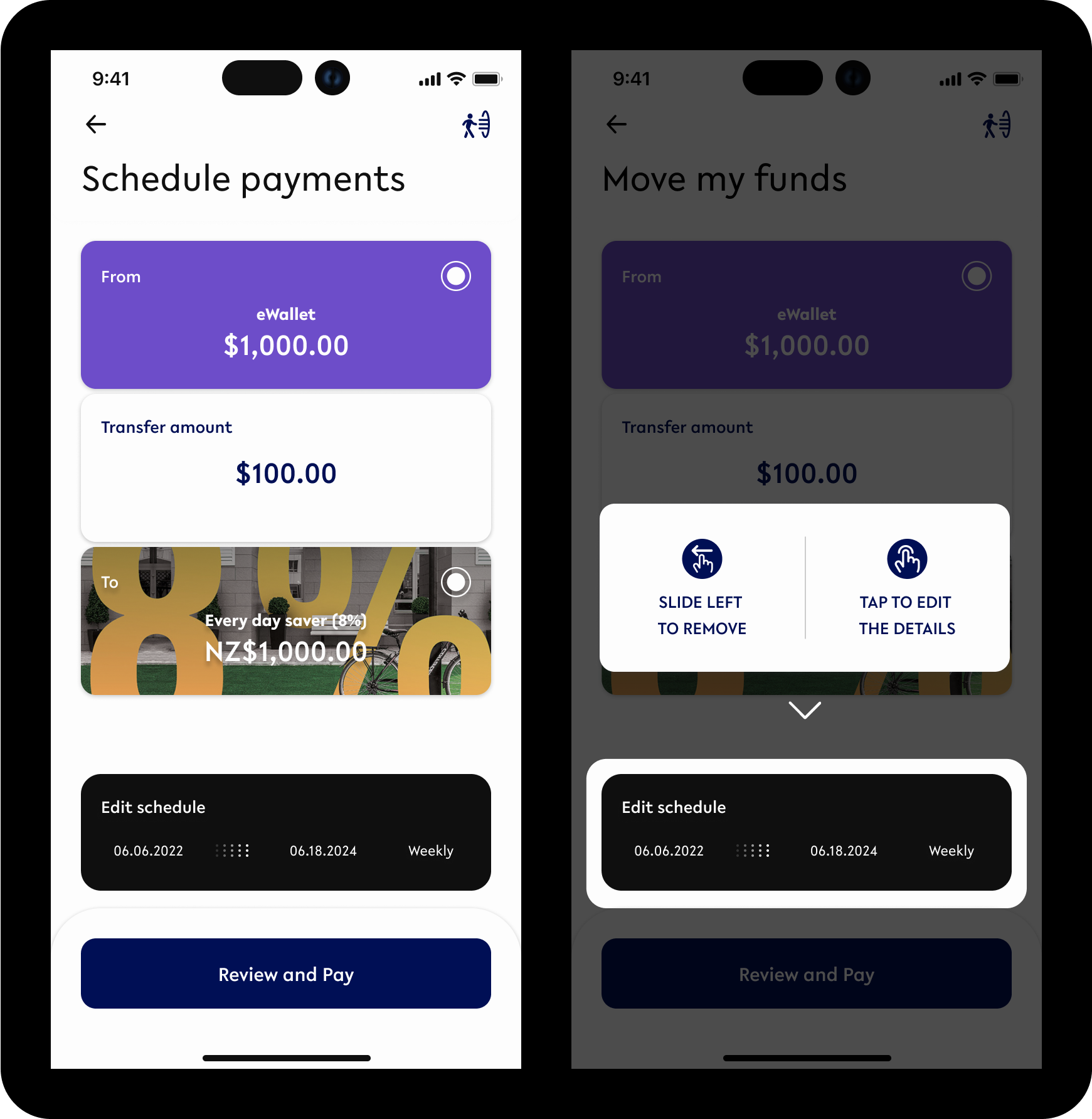
Option 1: During the creation
Tap on the schedule card to open overlay to edit the previously added schedule details.
-
Tap on the schedule
-
Edit calendar & frequency as needed.
-
Confirm
Option 2: From the 'Schedules' via menu
-
Select one of active schedule payment tiles (either active or pending state)
2. From bottom click on edit button to open up existing payment module with details prefilled.
3. Tap on the schedule.
4. Edit calendar & frequency as needed.
5. Confirm
TUTORIAL FIRST TIME VISIT
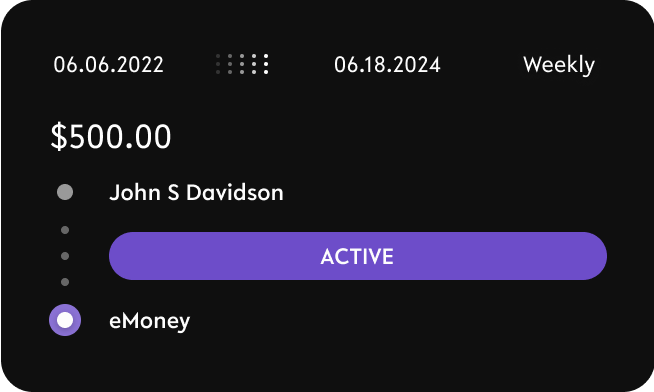
SCHEDULE TILES - DIFFERENT STATES
INTRACTABLE SCHEDULE TILES
PAYMENTS
ACTIVE
-
Ongoing schedule payment
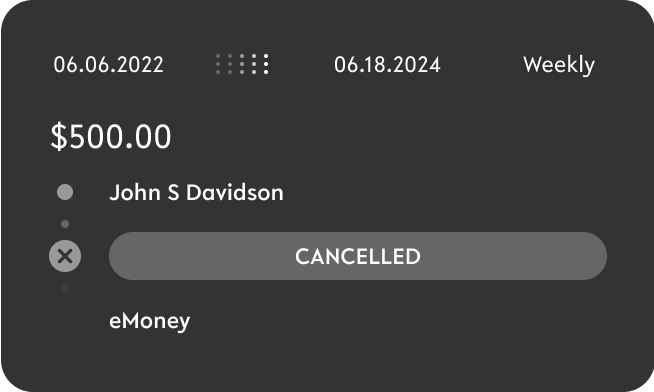
CANCELLED
-
The schedule is cancelled and is no long active
-
Sender has cancelled the schedule payments
-
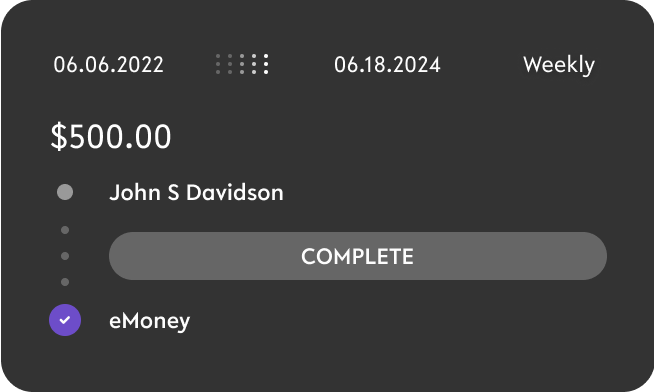
COMPLETE
-
All the scheduled payment has been paid
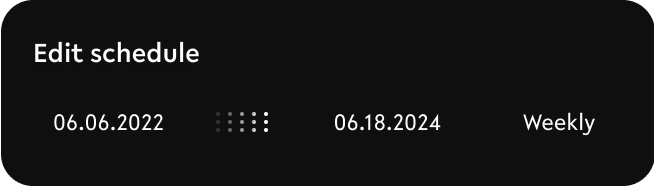
Collapsed
-
Visible only in the payment creation with payment modules (From, Amount, To).
-
Indicates 3 inputs assigned for schedule.
-
Starting
-
End date (if exists)
-
Frequency
-
REQUESTS
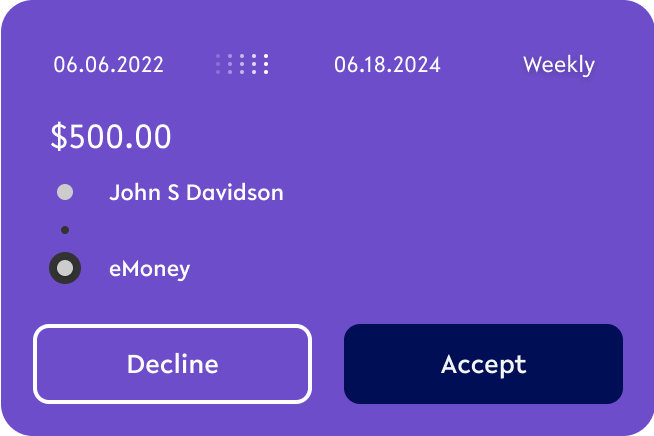
REQUEST RECEIVED
-
Someone has requested you to send scheduled payment.
-
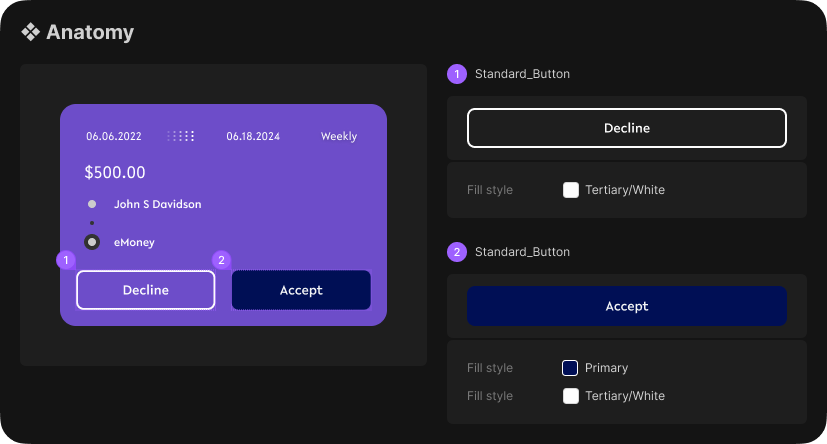
User can either decline or accept
-
Decline: Convert request sender’s tile from ‘Pending’ to ‘Declined’ in the inactive category
-
Accept: Convert tile into ‘Active’ state which will send scheduled payment(s) according to the details.
-
PENDING REQUST SENT
-
User has sent request of schedule payment and waiting for the response to either be accepted or declined.

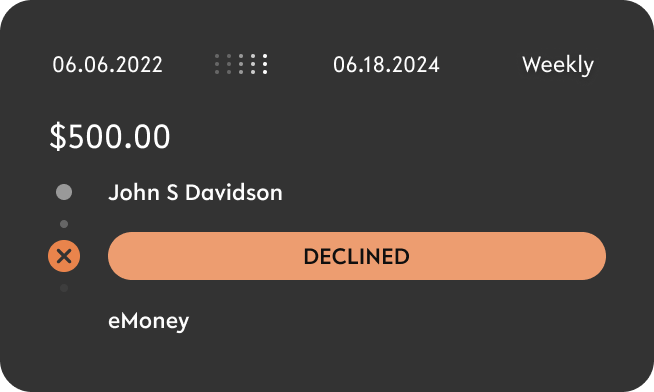
DECLINED
-
Request sent has been declined and is no longer active (converted into inactive category)
EXPIRED
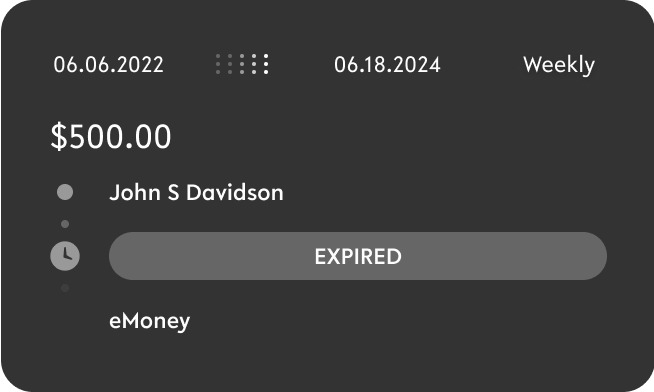
-
Request sent to a peer or a group has expired due to no response received.
-
becomes inactive
-
ANIMATION
Transition
Tiles ← → Detailed view
Conditional feature details
NOTES

|
|
Details |
Particular |
Reference |
|---|---|---|---|
|
P2P - Pay |
🟢 |
|
|
|
P2P - Request |
🟢 |
|
|
|
Group - Payment |
🟢 |
|
|
|
Group - Request |
🟢 |
|
|
|
Bill payment |
🟢 |
🟢 |
🟢 |
|
Transfer → savings |
🟢 |
🟢 |
🟢 |
|
Transfer → Loan |
🟢 |
🟢 |
🟢 |
|
Transfer → Linked bank account |
🟢 |
🟢 |
🟢 |
|
FX (Foreign Exchange) Transfer |
🟢 |
|
|

TRANSACTION SPECIFIC ACCOUNT INDICATION
Transaction specific indication
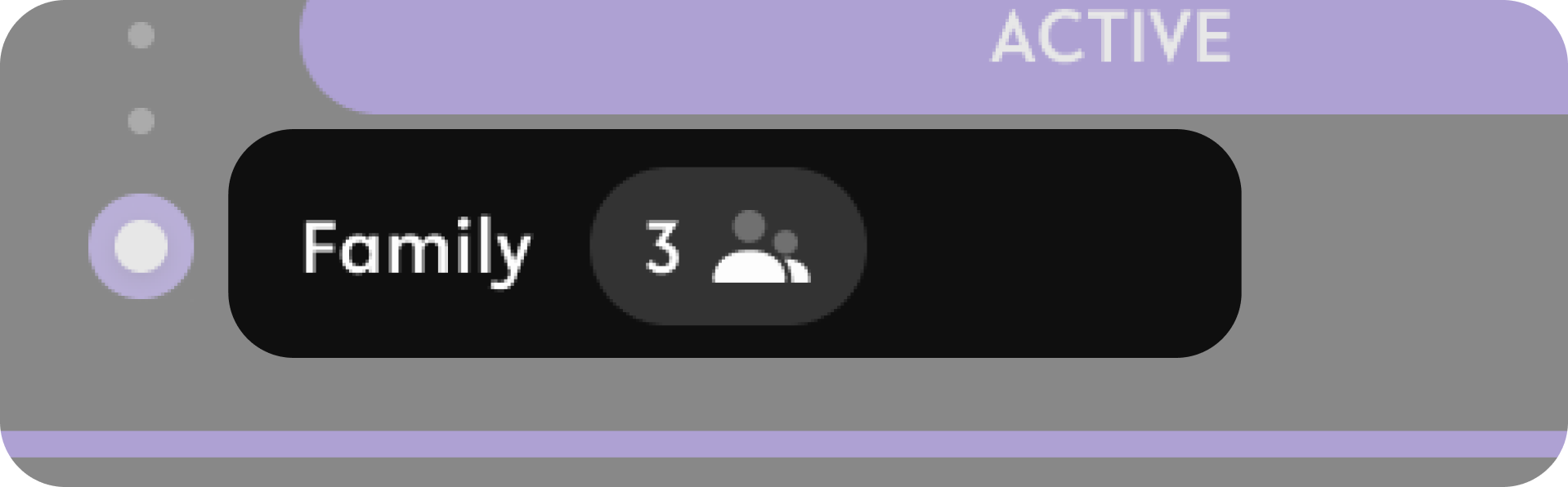
Batch Pay & Request
USE CASE: BATCH PAYMENT
-
Group name from ‘Favourite’
-
Number of people to Pay or Request to
-
Icon/24/Group Icon 16x16px
https://www.figma.com/file/F1fNT99VGTJHJ1jAnjFTn6/Youtap-Style-guide-V1.0.2023?type=design&node-id=4%3A205&mode=design&t=WTeAC7YjNIZzQC7s-1
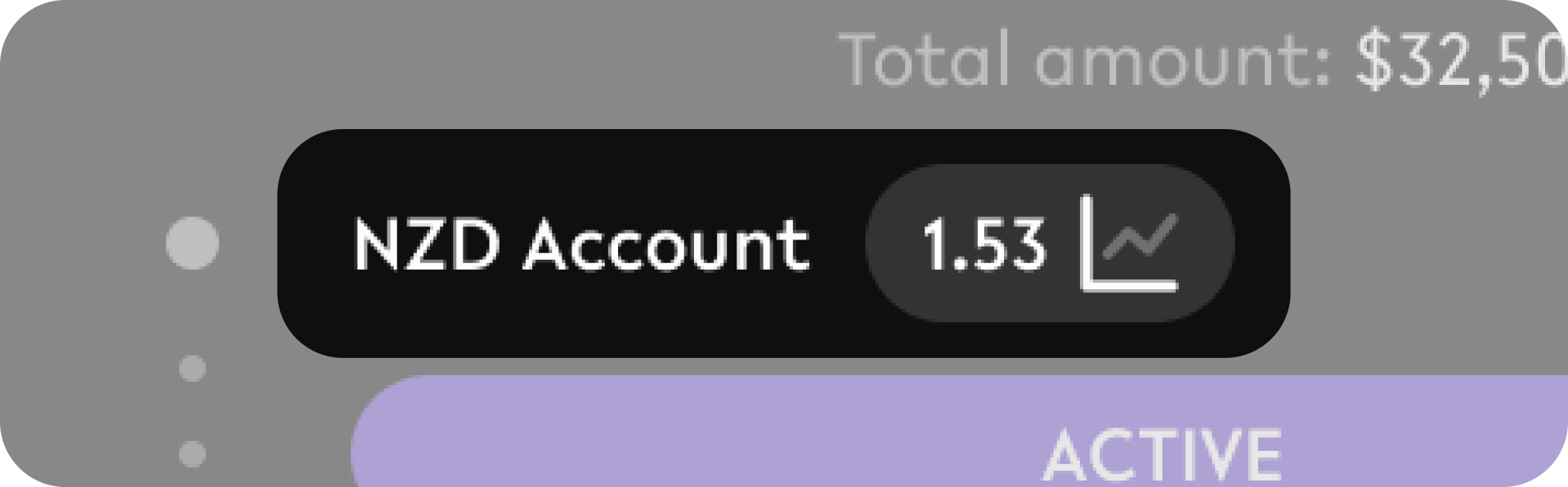
Exchange Rate
USE CASE: FX TRANSFER
-
Account number
-
Rate (multiply Factor) next to (from)
-
Icon/24/Group Icon 16x16px
https://www.figma.com/file/F1fNT99VGTJHJ1jAnjFTn6/Youtap-Style-guide-V1.0.2023?type=design&node-id=4%3A205&mode=design&t=WTeAC7YjNIZzQC7s-1
TOTAL PAYMENT INDICATION
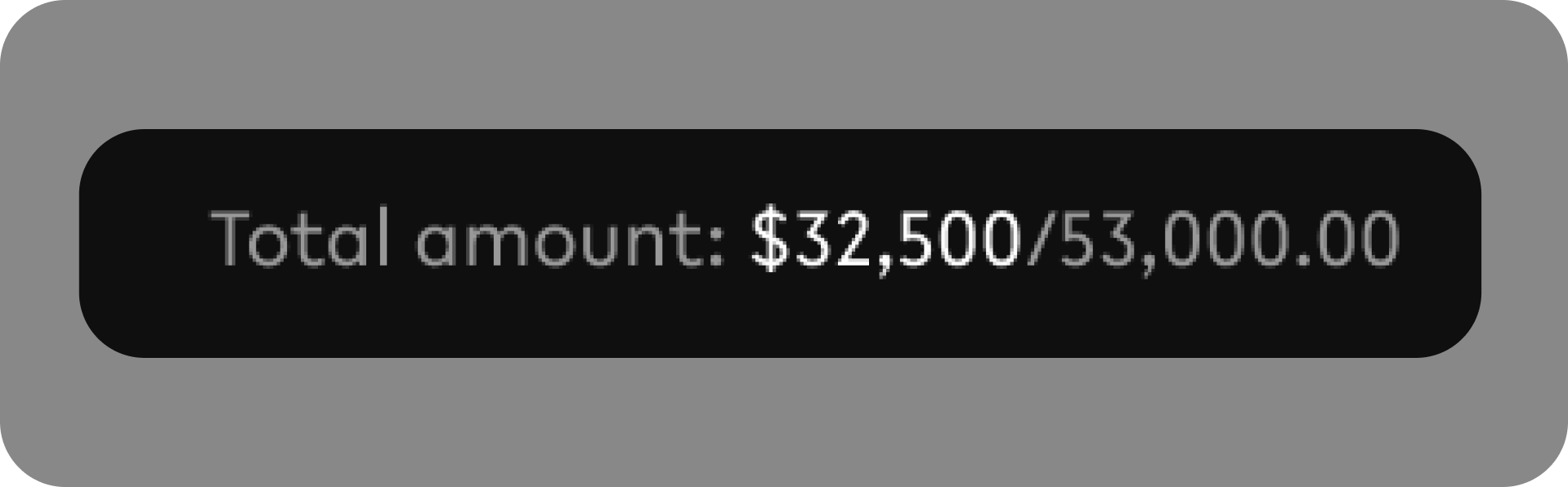
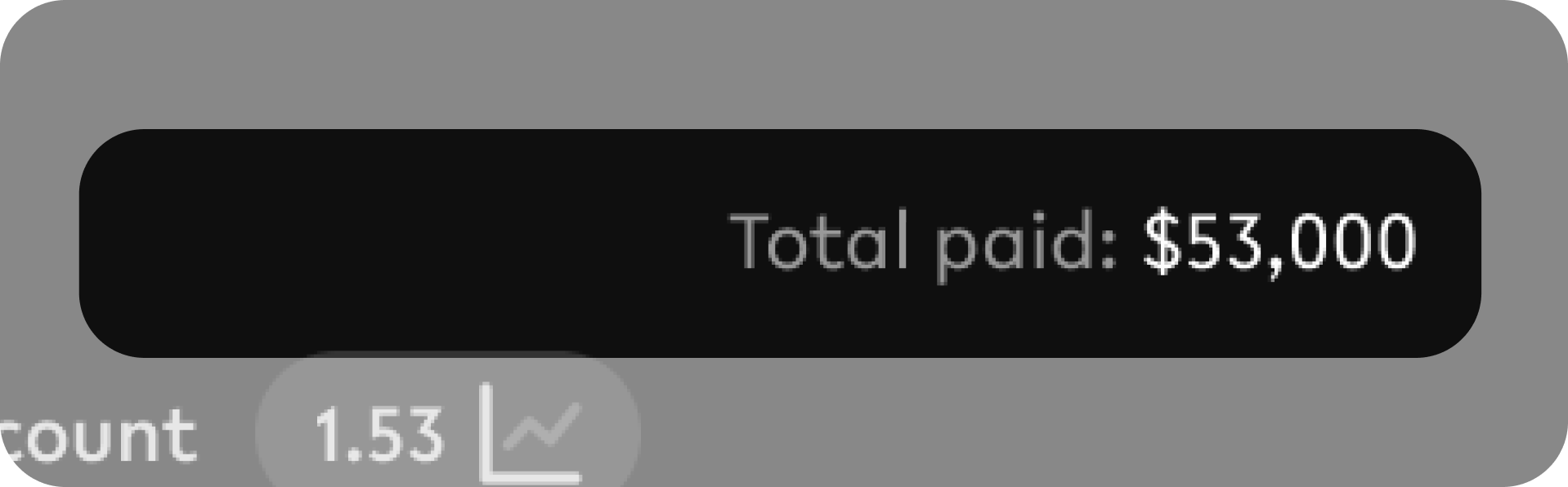
-
This information only appears at detailed views
(transaction menu → Schedule → Tap on schedule tile) -
There are 2 informations which are presented depending on schedule type
-
Total amount paid so far
-
Total sum to pay (based on amount + frequency + fixed period)
-
|
|
Amount paid |
Total amount |
|---|---|---|
|
Ongoing |
🟢 |
|
|
Fixed period |
🟢 |
🟢 |
|
One off |
🟢 |
|
DEVELOPMENT DETAILS
Overlay Module - Schedule creation via Payment Module
Create schedule UI
Create/Edit calendar mode dimension - Expand to view
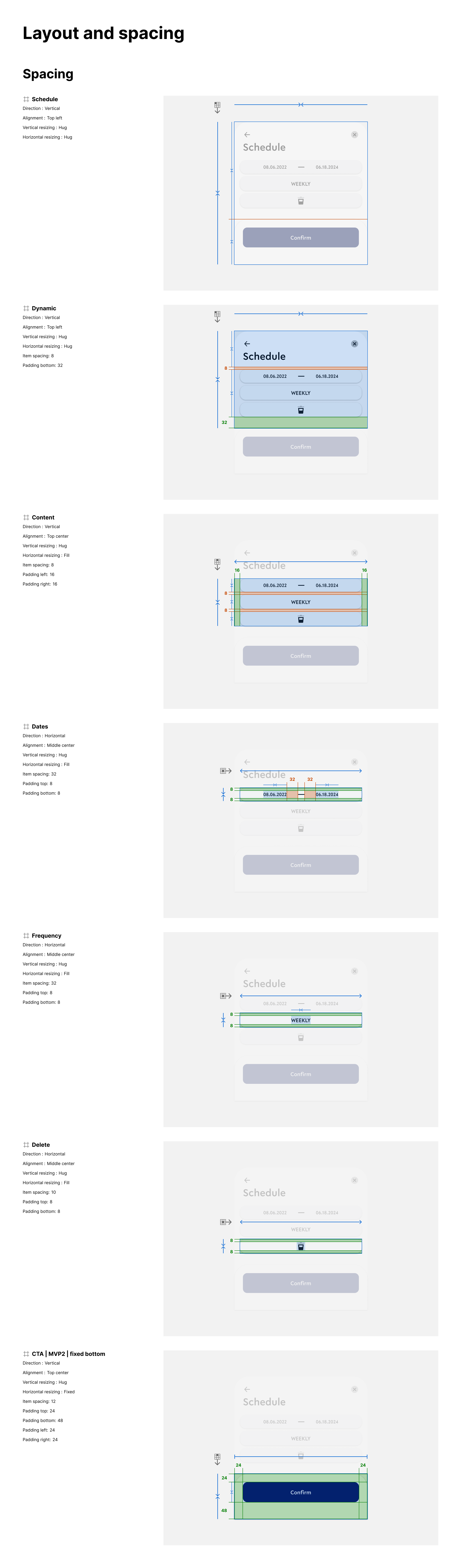
Style property - Expand to view
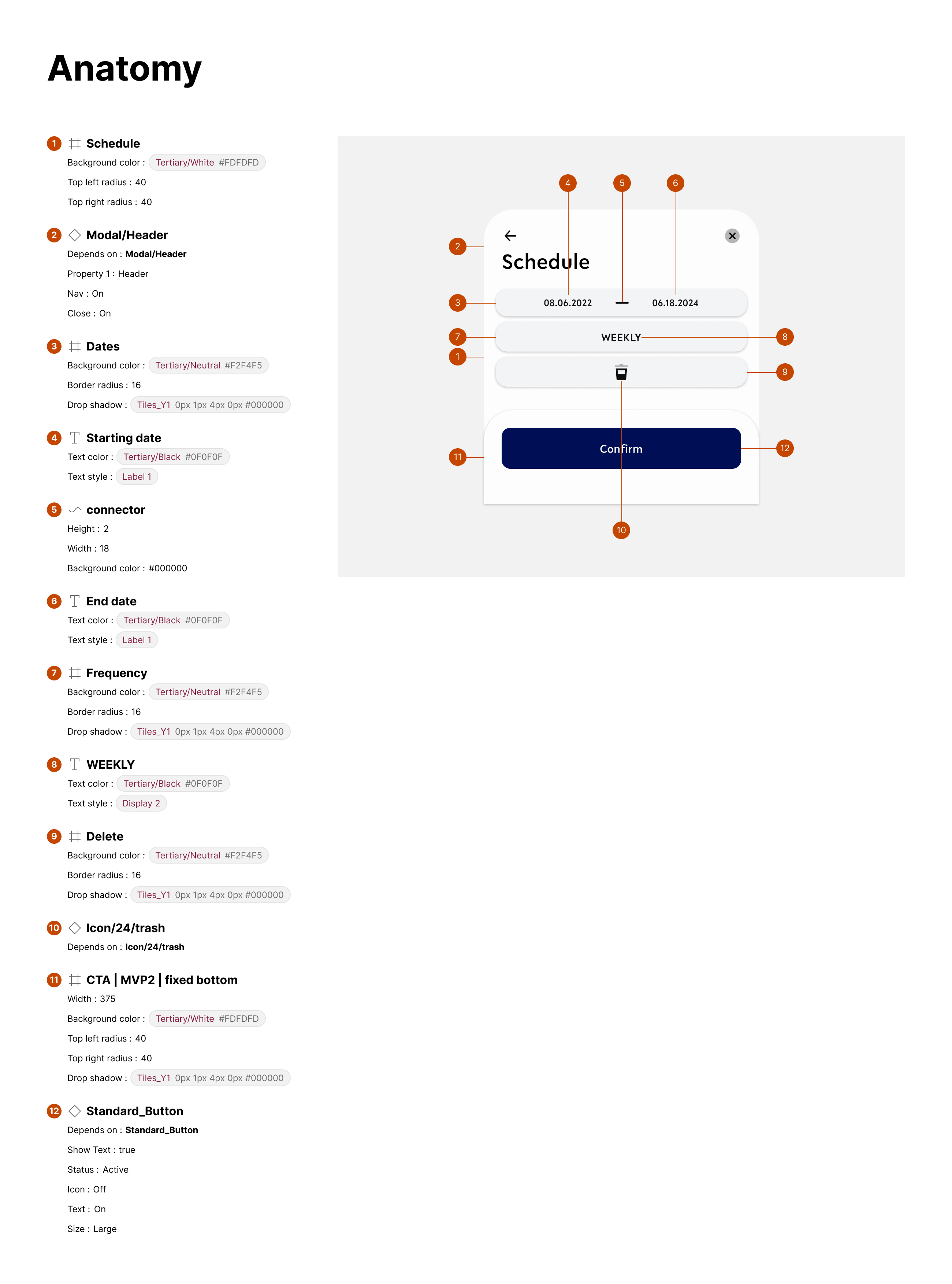
Create/edit schedule overlay mode
Create/Edit calendar mode dimension - Expand to view

Style property - Expand to view
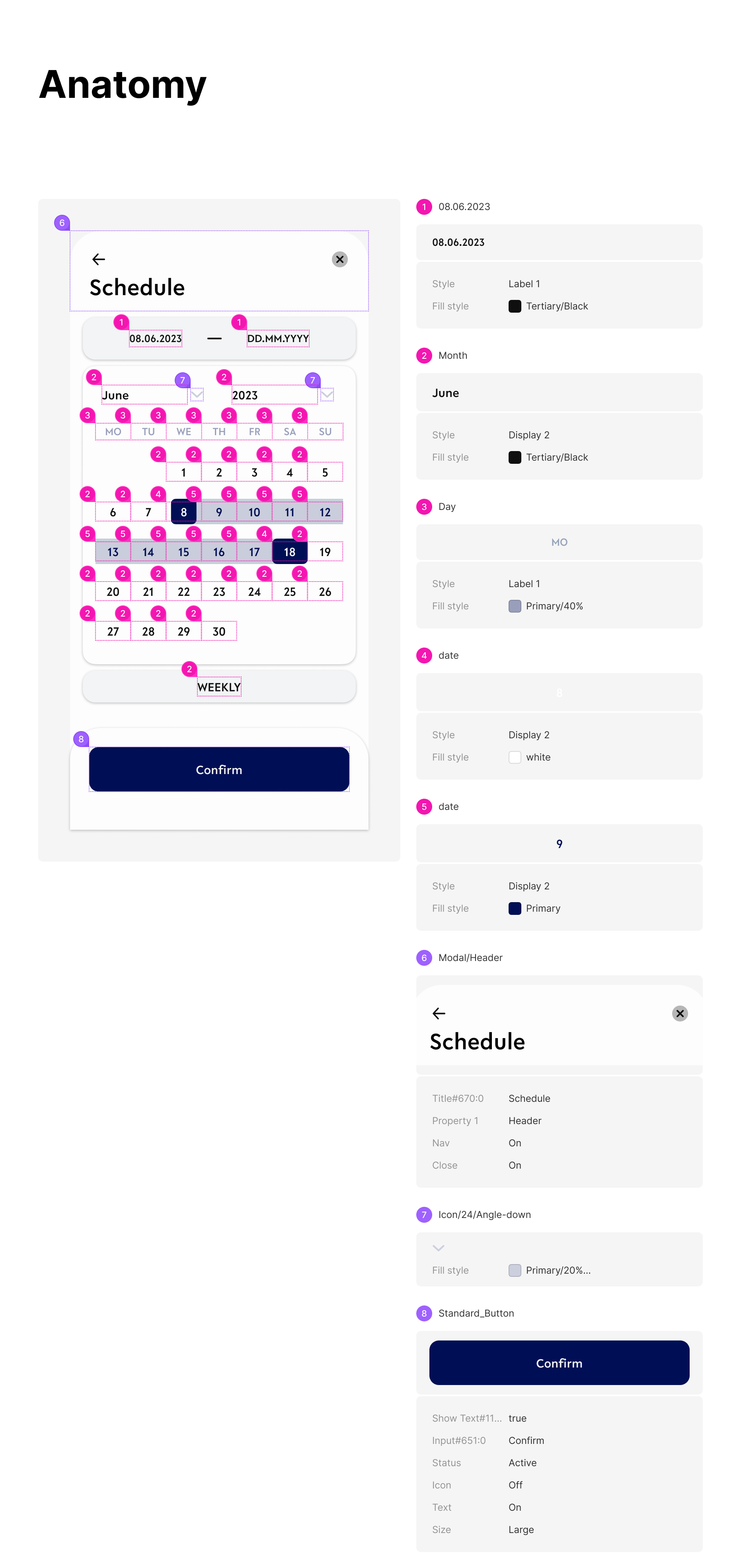
Modify schedule overlay mode - Triggered when tapping on ‘Collapsed schedule UI’ during payment creation
Create/Edit calendar mode dimension - Expand to view
Style property - Expand to view
Reviewing Schedule tile format - Schedule creation via Payment Module
Collapsed schedule input UI - Payment Module view only
-
Default state
-
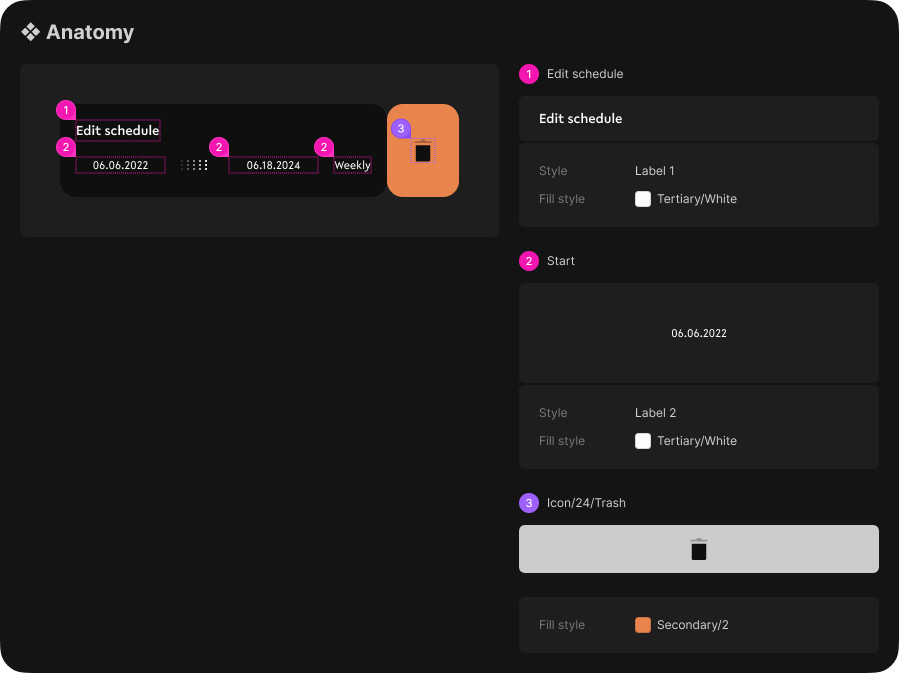
Slide to remove states
Default state dimension - Expand to view
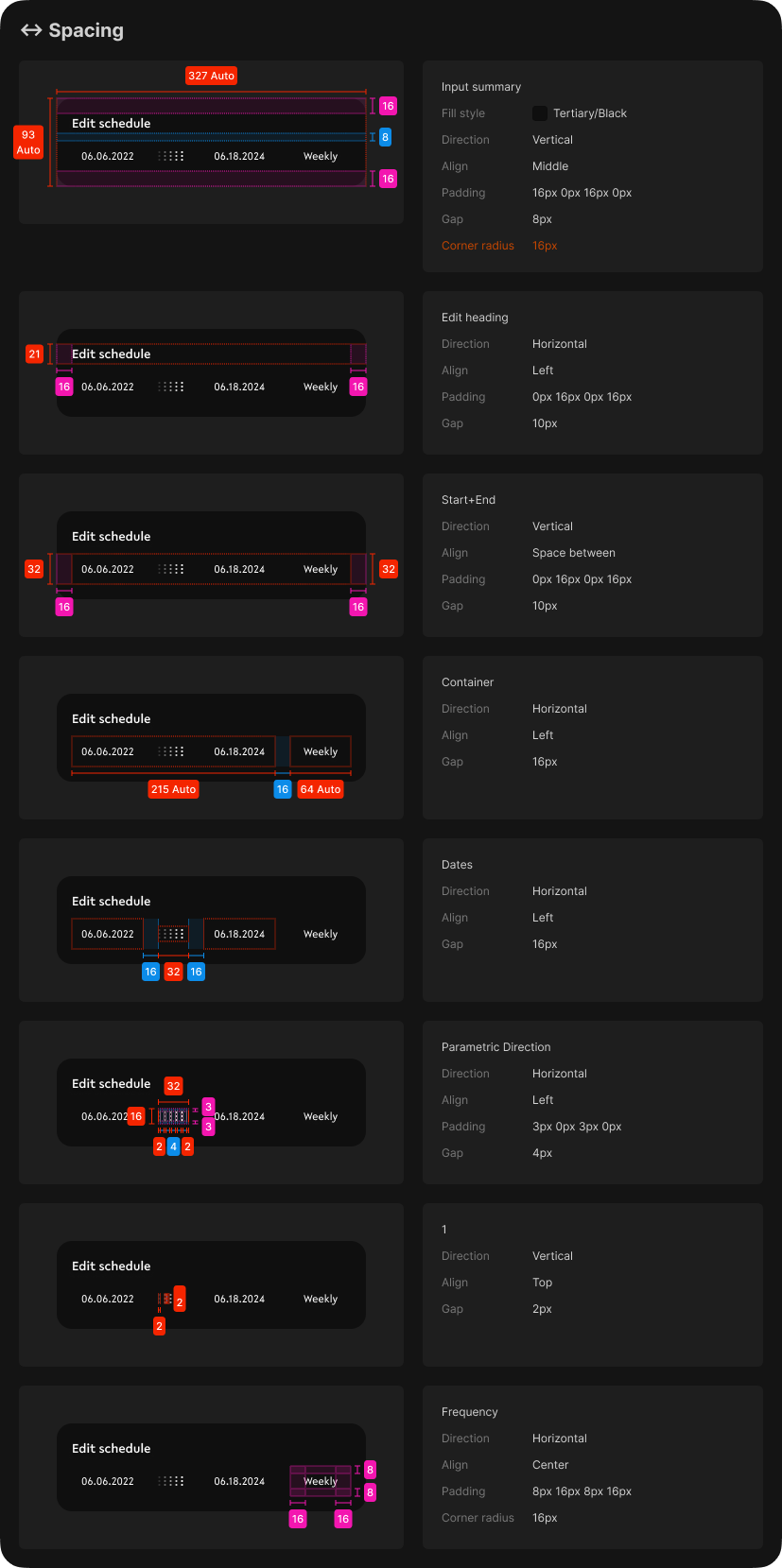
Slide to remove states dimension - Expand to view

Style property - Expand to view
Schedule tiles
-
Detailed view state
-
Simplified view state
Detailed view dimension - Expand to view

Simplified view dimension (Refer Detailed view first) - Expand to view
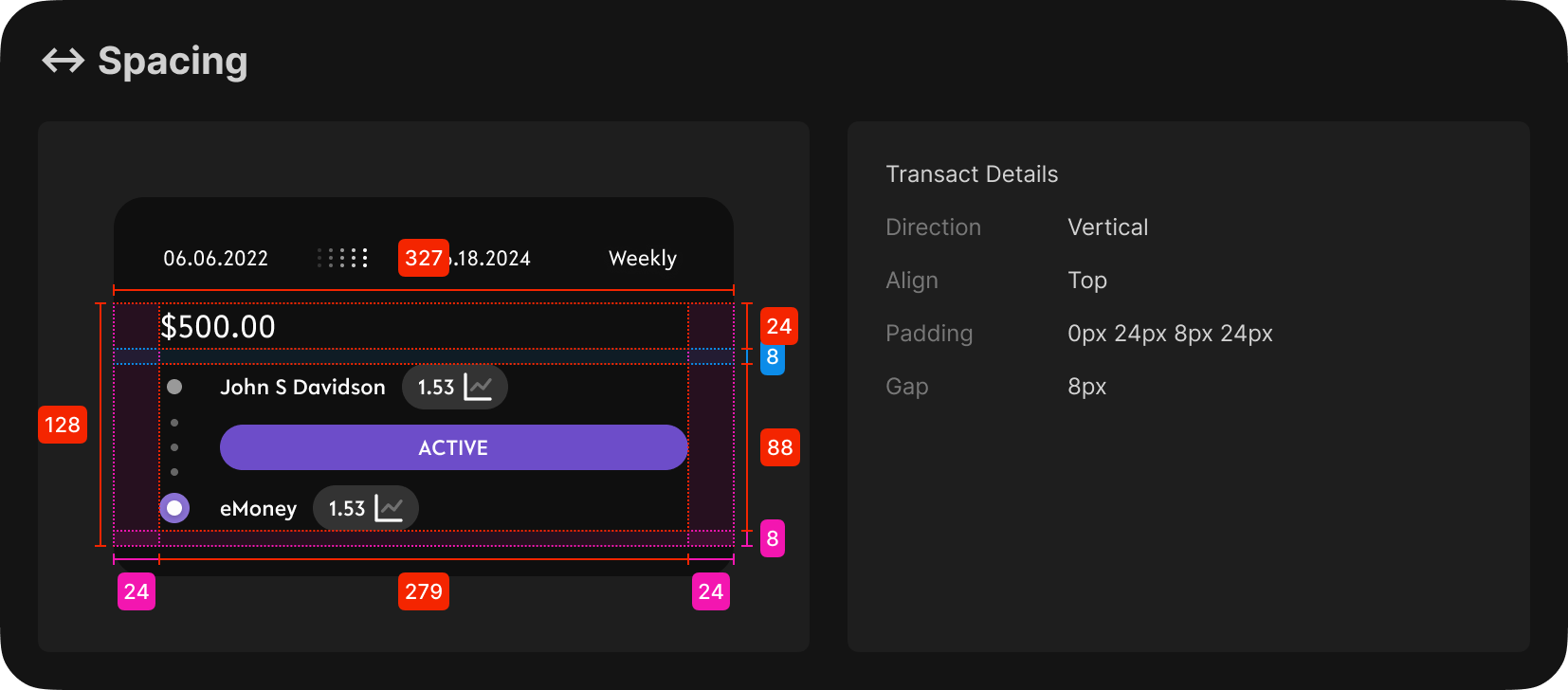
Style property - Expand to view
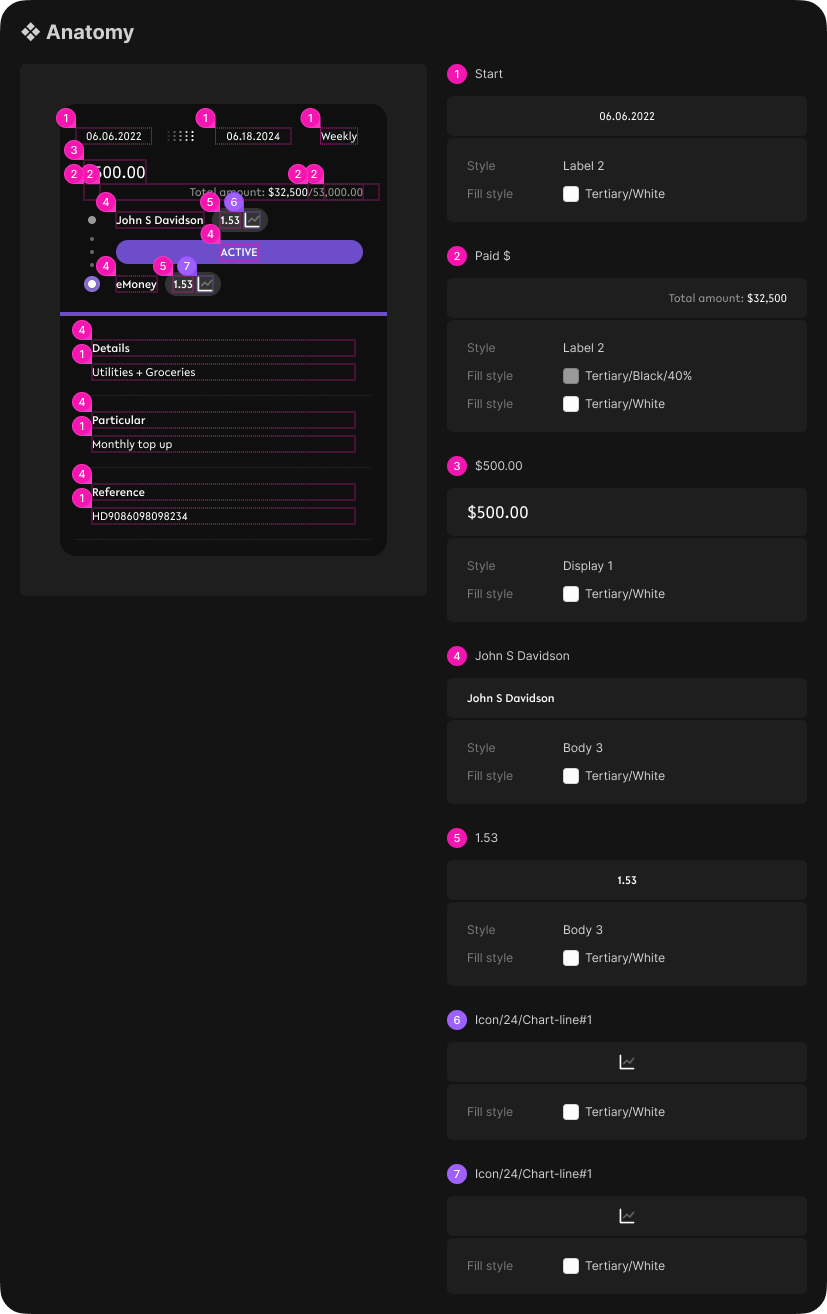
Style property - Expand to view
Request tiles
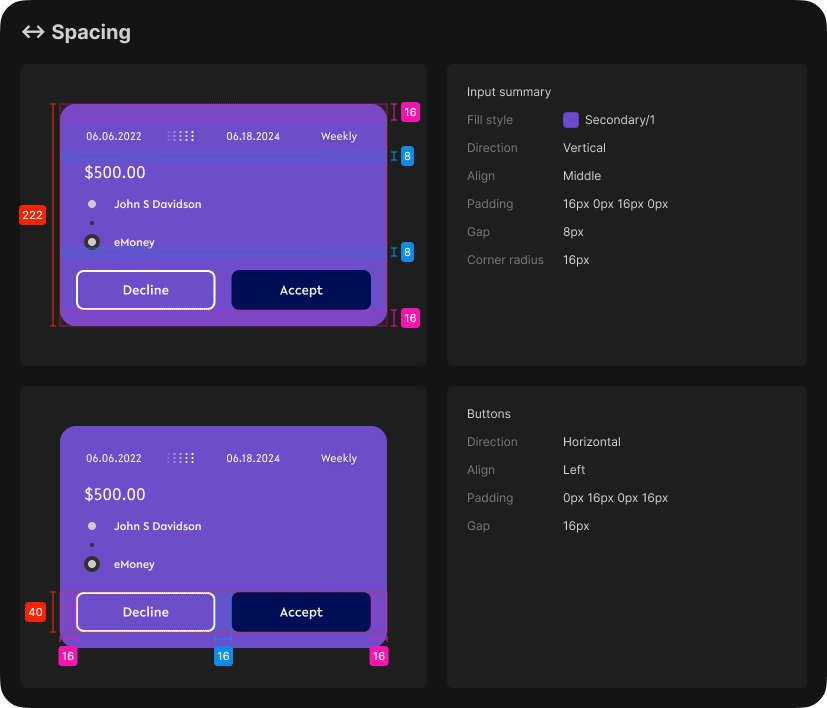
Only difference to the regular tile is addition of the 2 CTA to ‘Decline’ or ‘Accept’ the request.
-
Detailed view state
-
Simplified view state
To view the
Detailed view dimension - Expand to view
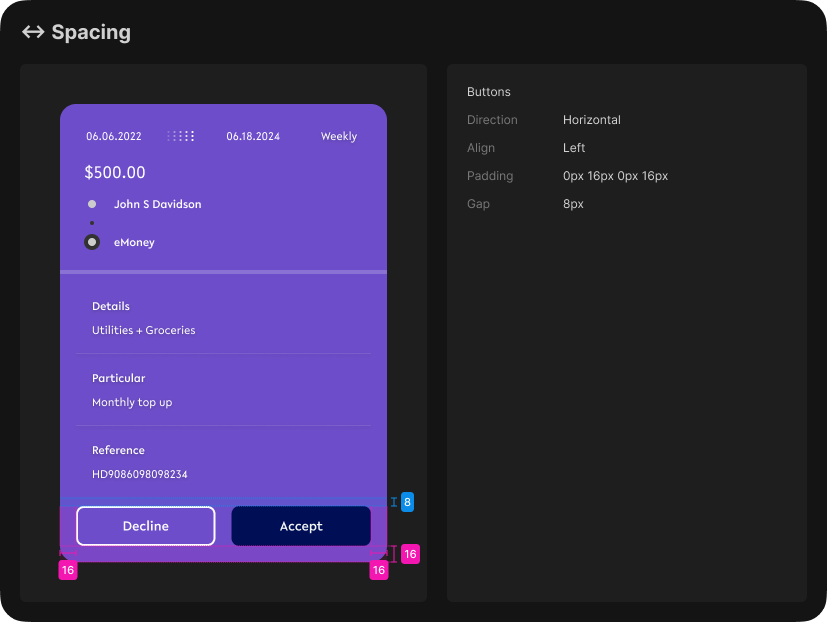
Simplified view dimension (Refer Detailed view first) - Expand to view
Style property - Expand to view
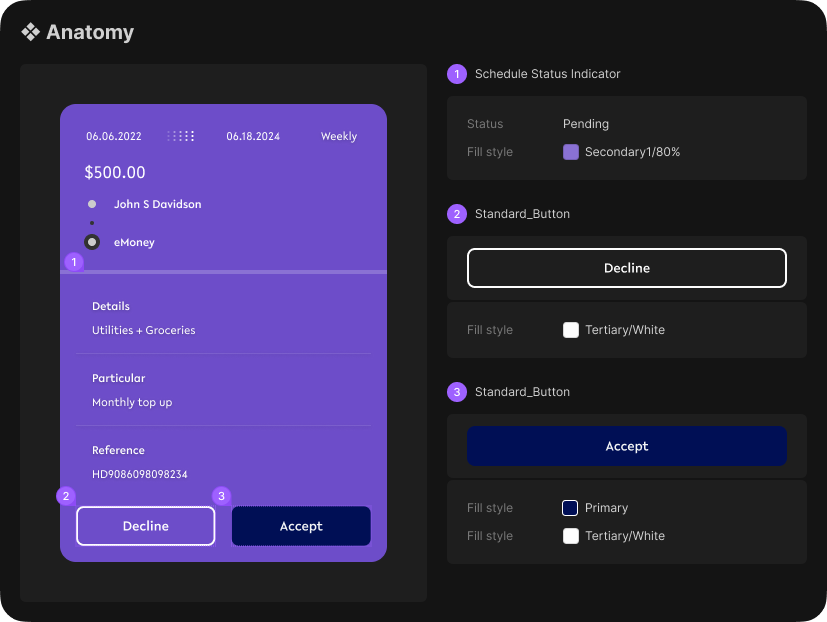
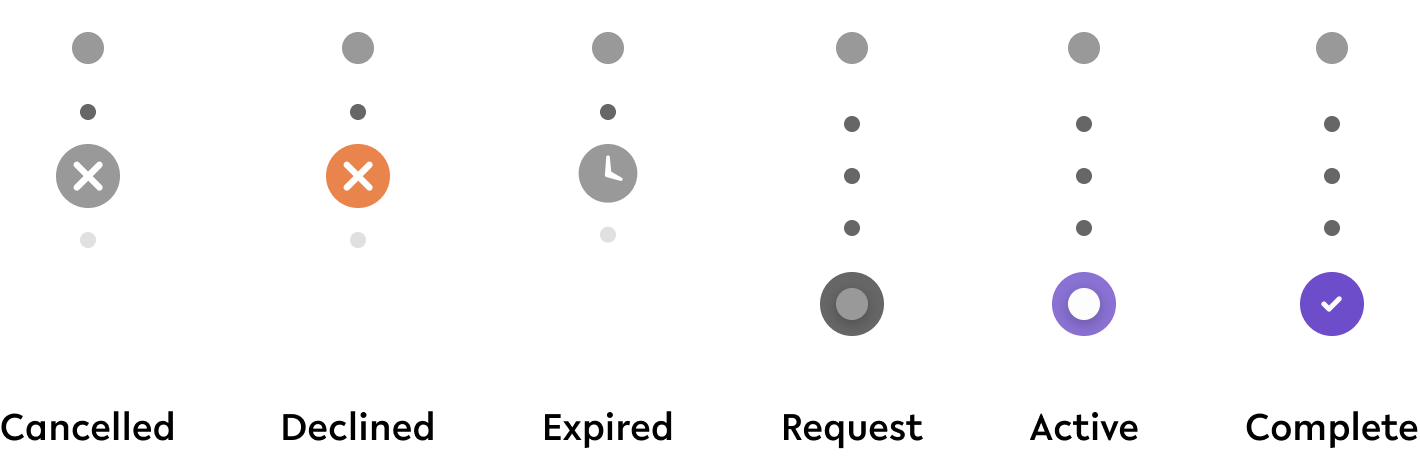
Indication UI details
Refer to tile states above for their application.
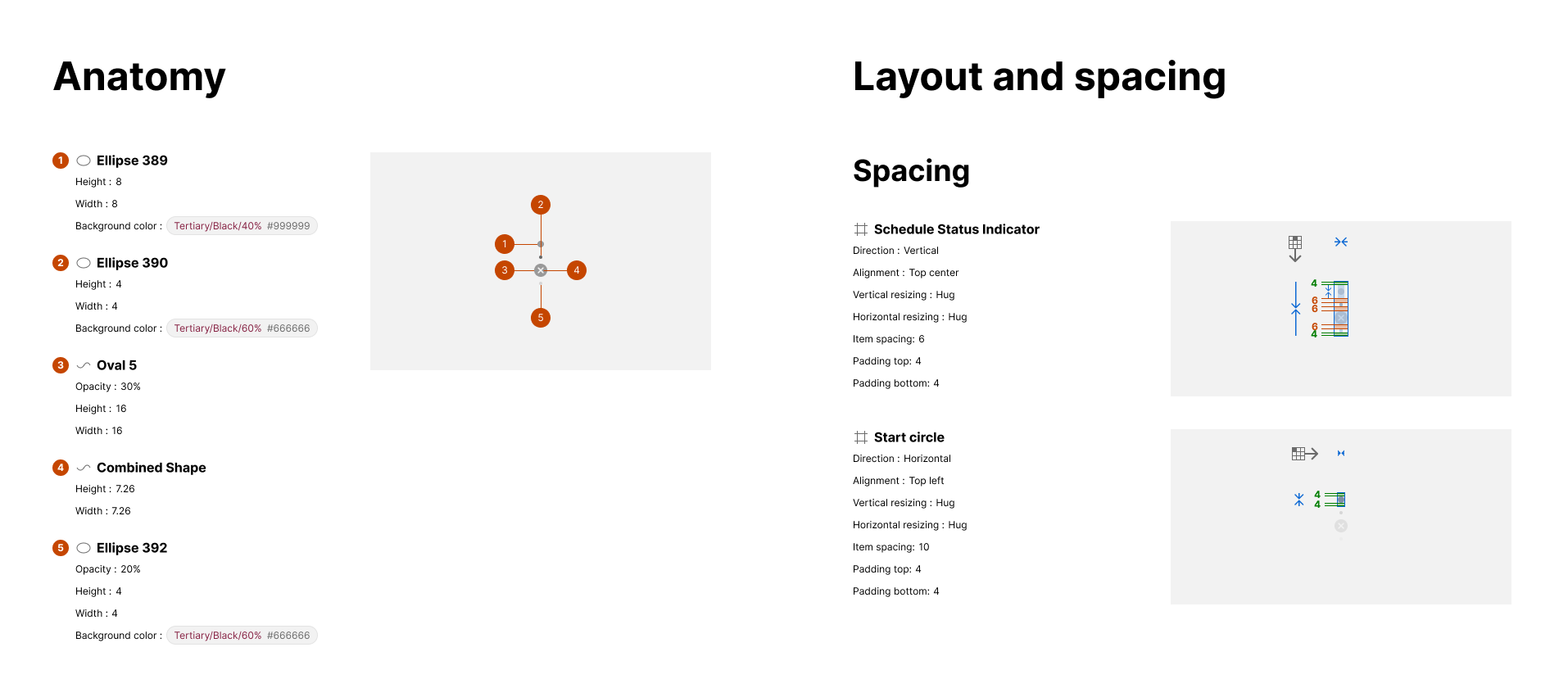
Cancelled dimension and property
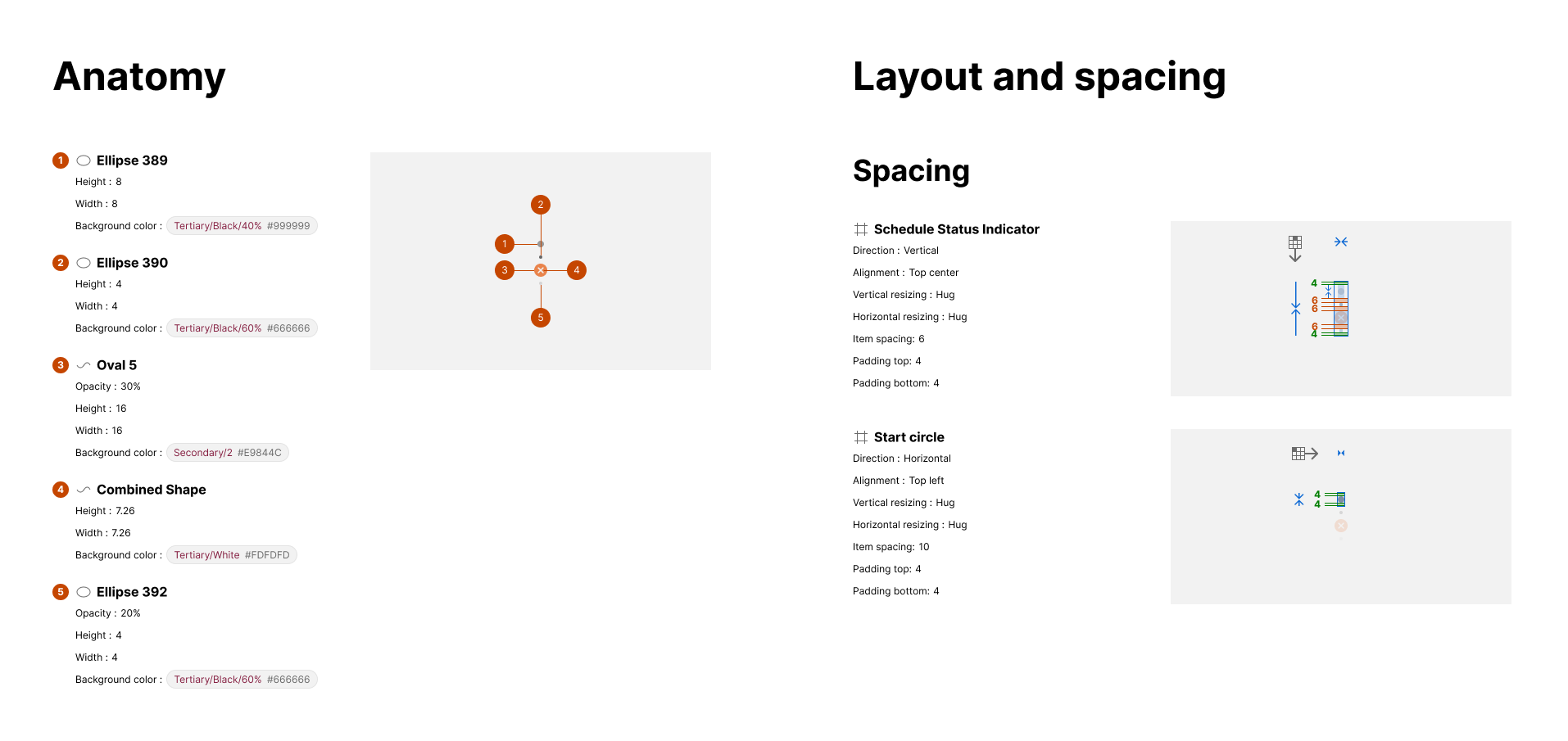
Declined dimension and property
Expired dimension and property

Pending dimension and property
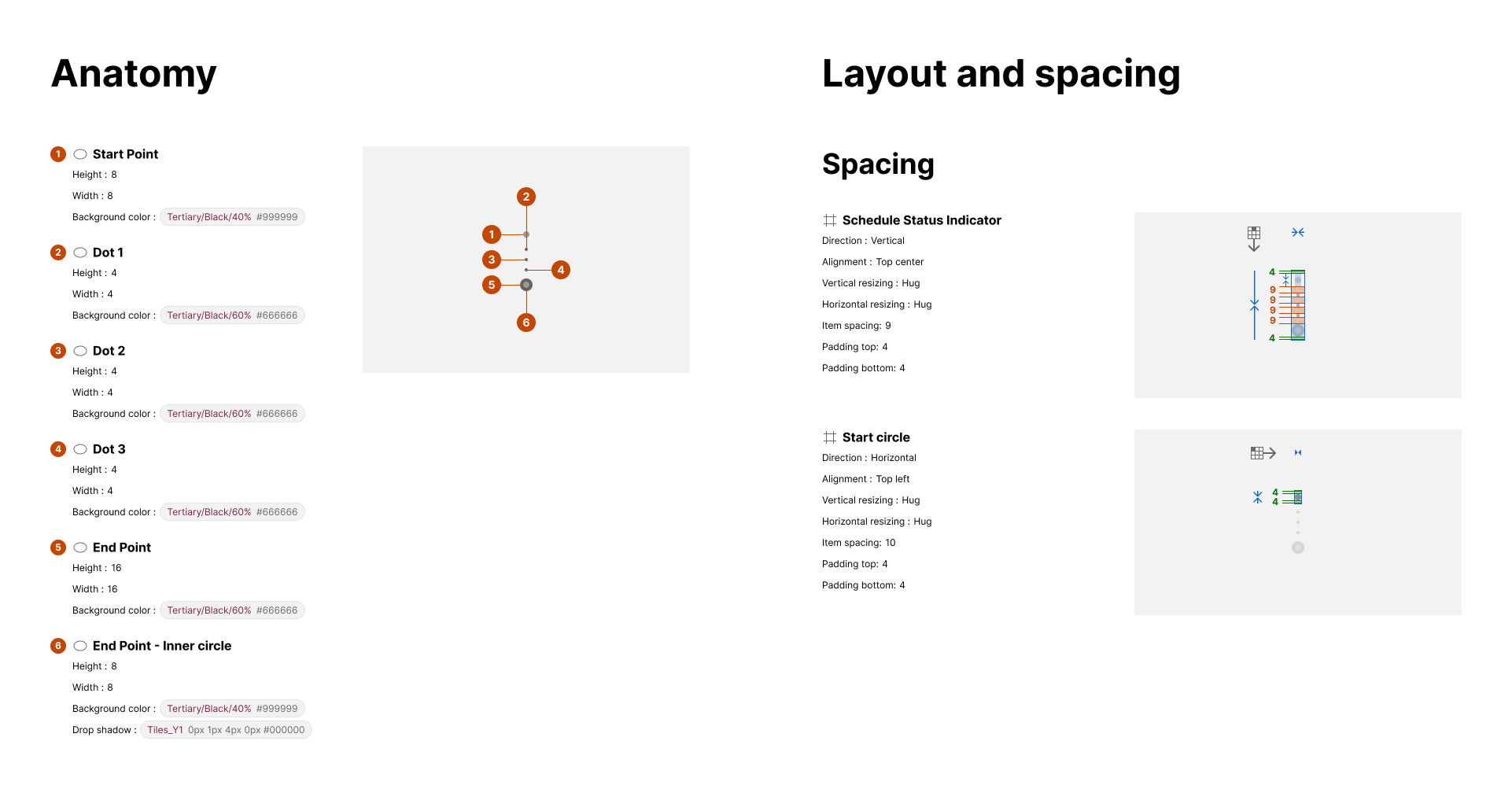
Active dimension and property
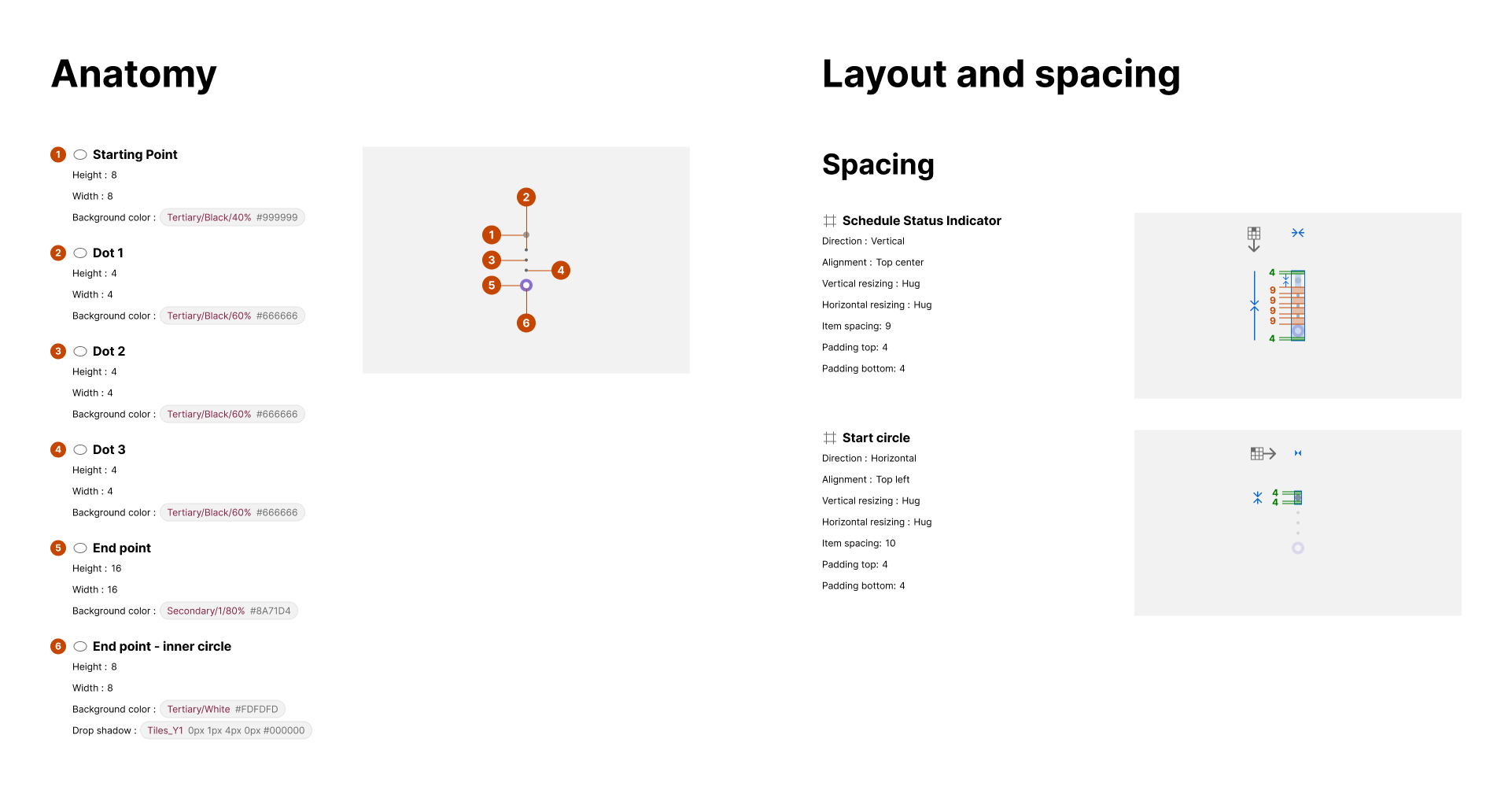
Complete dimension and property